
The Short Answer
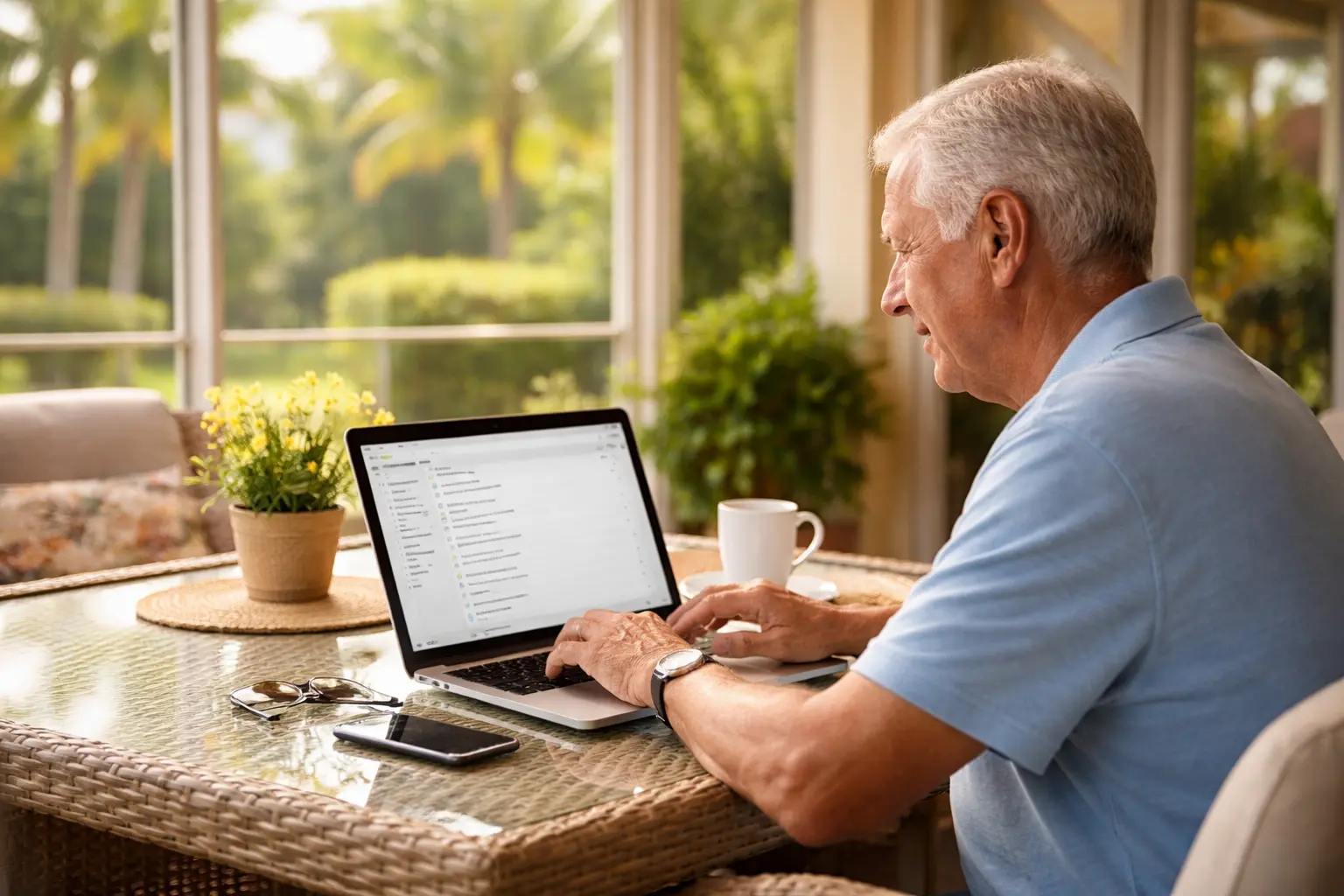
The easiest way for a senior to start with email is a free Gmail account, set up one step at a time with someone patient beside them. Gmail has a clean layout and filters out many spam messages on its own.
Many seniors come to me frustrated with email. They forget passwords, worry about scams, or feel buried in inbox clutter. I help with all of it through in-home email help for seniors in Manatee County.
Why Email Is Useful for Seniors
Email keeps seniors connected with family, friends, doctors, and community groups. Over the past 10 years, I have helped many seniors in Manatee County set up accounts, avoid scams, and use email with confidence.
I remember teaching a client in Heritage Harbour to email her grandchildren. She told me, "It feels like I'm part of their daily life again."
- Stay connected by sharing updates and photos without waiting on mail
- Reach doctors and caregivers, since many healthcare providers use email or patient portals for appointment reminders and lab results
- Hear from churches, clubs, and neighborhood groups that share news by email
Where to Learn Email Basics
You do not have to figure email out alone. Some of my clients prefer one-on-one training at home, while others enjoy the social side of group classes. Either way, the goal is building confidence step by step.
- Local senior centers and libraries often offer free computer classes
- AARP has online guides and webinars made for seniors
- In-home tech support lets you learn at your own pace
Which Email Service Should Seniors Use?
I usually recommend Gmail because of its clean design and automatic protection against many spam messages. It also works well on smartphones and tablets for seniors. Here are the common options:
- Gmail is free, with strong spam filters
- Yahoo Mail has large inbox storage and a simple layout
- Outlook from Microsoft suits people already using Windows computers
How to Create Your First Email Account
Here is how I guide seniors through setup. I tell them, "Your password is like your house key. Don't give it away, and keep it somewhere safe."
- Go to the provider's website, for example Gmail.com
- Click "Create Account" and enter your first and last name
- Choose a username that is easy to remember, like firstname.lastname
- Create a strong password by combining a favorite word with numbers and a symbol, like SunnyDay1950!
- Write the password down safely in a notebook, or store it with a password manager
- Add recovery options like a phone number or alternate email to help reset passwords
Using the Inbox and Sending Email
Once the account is ready, click a subject line to open an email. Deleting an email is always safer than opening something suspicious.
I once had a senior in Lakewood Ranch who was thrilled to learn how to attach photos. "Now I can send my garden pictures to my brother in Ohio!" she said. Small wins build confidence.
- Inbox is where new emails arrive
- Sent keeps a record of messages you have sent
- Drafts holds unfinished emails, saved automatically
- Spam or Junk is where suspicious messages are filtered
- Attachments, like a photo, are added with the paperclip icon
How to Stay Safe With Email
Email scams that target seniors are common, so a few habits matter. The FTC and the Better Business Bureau both have easy resources for reporting scams.
- Only open emails from people or companies you recognize
- Look for https:// and a padlock if you click on a link
- Do not open attachments from unknown senders
- Be careful with urgent warnings like "Your account is locked," which are often scams
- Report suspicious emails by marking them as spam
Accessibility and Caregiver Help
For seniors with vision or mobility challenges, a few settings make email easier. Caregivers can also help by setting up alerts for new messages, sorting important emails into folders, and reviewing scam messages together to practice spotting red flags.
- Enlarge the text size in your device settings
- Use a voice assistant like Siri or Alexa to dictate messages
- Use a screen reader to hear emails read out loud
Fixing Common Email Problems
Most email trouble comes down to a few common issues, and tech troubleshooting help for seniors covers more of them. Patience and repetition are key, so I often revisit these topics several times during a session until it feels comfortable.
- Forgotten passwords: use your recovery phone number or alternate email
- Emails going to spam: mark legitimate senders as "Not Spam"
- Attachment trouble: learn the difference between downloading and opening a file
Common Questions About Email for Seniors
What is the easiest email service for seniors?
Gmail is a great option. It has a simple design, automatic spam protection, and works with most devices.
How do I help a senior remember their password?
Encourage writing it down in a safe place, using a password manager, or creating a memorable phrase with numbers and symbols.
How can seniors avoid email scams?
Never respond to messages asking for personal details. Only open attachments from senders you know, and report suspicious emails as spam.
Learning Email With Patient Help
Email is a way for seniors to feel connected, informed, and independent. I have seen the pride it brings when a senior sends a first email or avoids a scam on their own.
If you or someone you love wants to learn email step by step, I give patient in-home lessons in Manatee County and Sarasota County. You are welcome to send me a message about email help and tell me where you are stuck.